Turn a Photo Into a Football Highlight Video With AI
 Ozilai Team
Turn one still into an AI football highlight: how image-to-video animates your photo, which photos survive, and a pre-flight checklist before you generate.
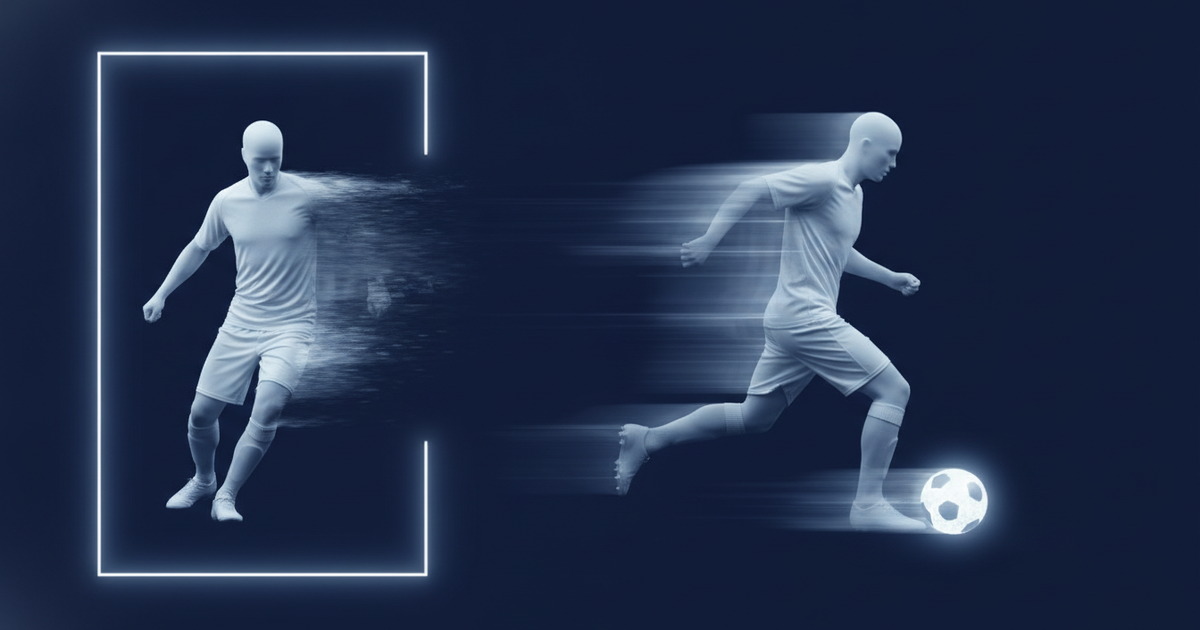
One good photo is enough to turn a still into a football highlight. On Ozilai.video your image becomes the first frame of the clip and Seedance 2.0 animates forward from it, which is why the photo you choose decides more of the result than the prompt does. Pick a single clearly visible person, in focus, with room in the frame, and you have removed most of the reasons a photo-to-video edit comes back looking wrong.
Gere o seu aqui
Escolha uma foto clara e bem iluminada da pessoa a quem o gol pertence.
Carregue uma foto para continuar.
Ao gerar, você confirma que tem permissão para usar esta foto.
Seu clipe aparece aqui
Uma renderização com as configurações padrão custa 30 créditos.
What actually happens to your photo
The pipeline is short and worth understanding once, because every rule later in this guide follows from it.
- You upload a still. It is used as frame zero of the generated clip.
- You write a prompt that describes motion: what the subject does, how the camera behaves, how fast the shot feels.
- Seedance 2.0 generates the frames that follow, keeping continuity with the still you supplied.
Nothing about the shot's identity is invented — the face, kit, lighting and background all come from your photo. Your job in the prompt is to explain where the shot goes next.
Why the model animates from your photo instead of inventing a new person
Generating a footballer from text alone means the model has to choose a face, a build, a kit and a stadium before it can animate anything, and those choices vary from run to run. A photo removes that uncertainty: frame one is fixed, so the model spends its capacity on motion instead of casting. That is why image-to-video clips of the Özil goal usually look more like the person you had in mind than text-only runs do — and why the photo is worth two extra minutes of preparation.
The same logic sets a limit. The model animates from what frame one shows, so requesting something frame one does not support — a standing subject suddenly mid-air at the far side of the pitch, or a second camera angle cut into a single still — usually produces warping. Keep the requested motion plausible as a continuation of the pose in the photo.
The minimum practical photo requirements
These are the conditions that most reliably produce a usable clip:
- One clearly visible person. Single subject, full body or upper body, not part of a tangle of limbs.
- Face not in shadow. Lit frontally or from the side. A face in deep shadow or wearing a cap pulled low gives the model little to hold onto.
- No heavy motion blur. A sharp subject with a slightly blurred background is ideal. A blurred subject is not.
- Portrait or square, framed loosely. Space above the head and around the body gives the animation somewhere to travel. A tightly cropped subject leaves no room for a run.
- Enough resolution to fill the frame. A 720p output needs a photo that can be scaled up to it without turning to mush; somewhere around 720 pixels on the short side is the practical floor.
- A background that does not compete. Blurred crowds and grass work well. Three other people in sharp focus do not, because the model cannot tell which figure is the subject.
Framing choices that matter more than they look
Vertical photos with the subject in the middle third give the best results for social video, because the run or the celebration can move up and down the frame without pushing the subject out of it. If you plan to post the same clip in both vertical and widescreen, generate two runs from the same photo rather than cropping one later — a crop of a generated clip throws away motion you already paid for.
What the model cannot fix
Some problems are baked into the still before generation starts. The list below is what tends to happen if you generate anyway, and the fix to apply beforehand.
| Photo problem | What happens in the output | How to fix it before generating | | ------------------------------------------------------ | --------------------------------------------------------------------------------- | ------------------------------------------------------------------------------------ | | Two people overlapping or merged in the frame | The figures blend into a single subject with mismatched limbs or a distorted face | Crop to one person, or choose a different photo where the bodies are separated | | Face turned away or fully in shadow | The model commits to whatever it can read and animates a vague, unstable head | Pick a shot where the face is lit and turned within roughly 45 degrees of the camera | | Very low resolution or heavy blur on the subject | Detail dissolves into smearing in the first second and never settles | Use the sharpest frame available; if none exists, use text-to-video instead | | A group photo with many equal subjects | The prompt's motion gets distributed across figures and the clip turns chaotic | Crop to the one person the shot is about before uploading | | Subject cropped at the knees with no space around them | Motion has nowhere to go, so the model invents space and the background warps | Use a loosely framed portrait, or accept a celebration shot that stays in place | | Cluttered background with many faces in focus | Background figures drift, multiply or merge with the subject | Blur, darken or crop the background, or shoot against a plainer area |
None of these are prompt problems, so no amount of rewriting the prompt will rescue them. Fix the still first.
Choosing 9:16 or 16:9
Aspect ratio is a distribution decision, not an artistic one, and it is worth making before you generate rather than after.
- 9:16 vertical for TikTok, Instagram Reels and YouTube Shorts. It fills the screen on a phone, which is where most of these clips are watched, and it gives the subject room to travel top-to-bottom.
- 16:9 widescreen for YouTube long-form, embedded players, and anything shown on a desktop or TV. This is the shape the original Özil goal is remembered in.
Two practical notes. First, vertical players place interface elements over parts of the frame, so keep the important action out of the extreme bottom and edges; a subject centred in the middle third stays clear. Second, if you want the clip on both a vertical feed and a widescreen embed, run the generation twice at the two ratios. Letterboxing a vertical clip into a widescreen frame leaves large bars and shrinks the subject, and cropping a widescreen clip to vertical cuts off the run you deliberately prompted.
Pre-flight checklist
Run through this before you press generate. It takes a minute and saves credits.
- Is there exactly one clear person in the frame? If a second person is prominent, crop or re-choose.
- Is the face lit and turned toward the camera? Avoid deep shadow, strong backlight and low-pulled caps.
- Is the subject sharp, with no motion blur on the face? Zoom in on the photo at 100 percent and check.
- Is the framing loose enough to move? Head, torso and some surrounding space inside the crop.
- Is the background free of competing faces? Crowds in soft focus are fine; sharp strangers are not.
- Have you picked the aspect ratio that matches where you will post? 9:16 for TikTok, Reels and Shorts; 16:9 for YouTube and embeds.
- Does the prompt name one action and one camera move? Two of each is where warping usually starts.
- Do you have credits for a second attempt? A standard 720p 12-second run costs 10 credits, and a reshoot is normal.
If you want a prompt to pair with the photo, use the Ozil goal prompt guide — the photo-anchored example there is written for exactly this workflow. The full step-by-step build, from upload to export, is in how to make the Ozil AI video.
What to check before you post
Watch the finished clip twice: once for the story, once for the details.
- Frame one. Does it match your photo? If the first frame already looks unlike the still you uploaded, regenerate rather than post.
- The last second. Hands, feet and the ball are where drift shows up first. Watch the final beat specifically.
- Continuity of the subject. Skin tone, hair and kit should hold steady across the whole clip.
- Silhouette at small size. Export-size viewers see a phone screen; if the subject reads as a dark blob, the clip will underperform regardless of how good the motion is.
- Sound. Generated video arrives silent unless you add a track. Mute-first viewing is the norm, so make sure the clip works without audio.
- Rights and consent. If the person in the photo is identifiable and you are posting publicly, make sure they are happy with it before you publish.
Once it is clean, publishing is its own small project — captions, hooks and posting order are covered in sharing an Ozil AI video on TikTok.
FAQ
Can I use a screenshot from a video as my photo?
Usually yes, with one condition: the frame has to be sharp on the subject. Pause on a moment where the person is clearly visible and not mid-stride, then crop to that single figure. Broadcast footage is often softer than a still photo, so expect less facial detail to survive.
Will the output look exactly like the person in the photo?
It will look like a video continuation of that photo, which is close but not identical. Frame one matches, and small drift accumulates over the following seconds. Shorter durations and simpler prompts keep it tighter.
What if my only photo is a group shot?
Crop to the one person the clip is about. Image-to-video works best with a single subject, and a group photo asks the model to animate several people at once, which rarely holds together. If cropping leaves a low-resolution fragment, use text-to-video instead.
Do I need a football photo to start?
No. A portrait works well — the model animates the subject and you describe the football action and setting in the prompt. Photos with the subject on grass or in kit simply need less describing, which tends to make the result more stable.
How many credits does one photo-to-video run cost?
A standard 720p 12-second generation is 10 credits. Plan tiers run from Starter at $9.90 per month for 20 credits up to Studio at $79.90 per month for 500, with one-time packs and yearly billing alongside them — all listed on pricing. New accounts get free credits on sign-up, which is the easiest way to test two or three photos before you commit. Start from the Ozilai home page to try it.